 Nixel
Preparing a screenshot
How to redact personal data in Chrome screenshots
For a screenshot of a Chrome page, capture it into Nixel's editor, review each detected item, choose solid bars or labels, and inspect the exported PNG before sending it. This workflow starts with a web page you can capture again.
Decide what the recipient needs to see
A useful support screenshot might need an error message, the surrounding controls and a little context. The customer's email in the sidebar, an unrelated conversation and the account's billing details may add nothing to the explanation.
Use a demo record when you can. Close unrelated panels and show only the area needed for the ticket or message. Look at the edges of the page too: personal details often appear in headers, menus and activity feeds.
Capture the visible page into Nixel
- Open the page you want to capture. Install Nixel for Chrome and make sure the relevant part of the page is in view.
- Check the detected categories. Review emails, phone numbers, card numbers and other supported sensitive text in the popup. To detect names, addresses and organisations, enable the optional local language model and allow its first download to finish.
- Choose Capture & redact an image. Nixel captures the visible page area and opens its screenshot editor with the detected regions covered.
- Review the findings in the editor. Keep sensitive findings hidden. If an item is a false positive and needs to remain visible, check it carefully before switching that finding off.
- Choose a mask style and export. Use solid bars or labels for the details you need to conceal, then choose Save PNG or the copy button.
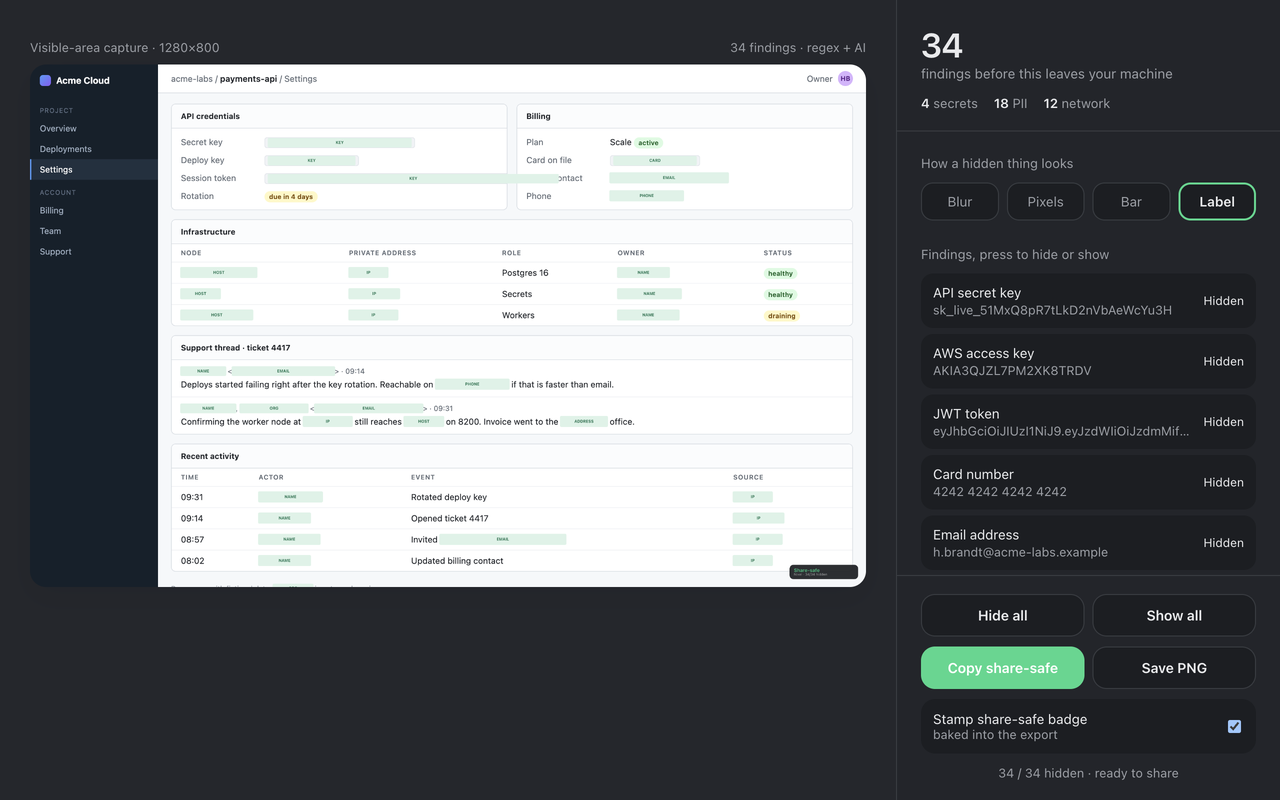
Use the findings list as a starting point
Check both sides of the editor: the covered image and the findings list. Look for text the detector didn't identify, and make sure none of the findings you meant to hide were switched off.
The finding count describes what Nixel detected. A count with every finding hidden doesn't certify that there is no other private information in the image. If a sensitive detail was missed, remove it from the page and capture again, or cover it in a local image editor before sharing.
Choose an opaque cover for sensitive details
Nixel offers blur, pixels, solid bars and labels. In the screenshot editor, bars and labels place an opaque cover over the selected detected regions. Use one of those styles when the underlying text needs to be concealed.
Review the whole value, including its first and last characters. A name or email can appear more than once, so check the rest of the image for repeated copies.
Open the exported PNG before attaching it
Save the image, open that exact file and inspect it at a readable size. Check names, email addresses, phone numbers, addresses, account identifiers and anything else that could identify the person involved. Keep only the context the recipient needs.
If you use the copy button, inspect the pasted image in the destination before sending the message. Attach the reviewed result rather than an earlier unredacted capture.
This is a workflow for captured Chrome pages. Nixel doesn't inspect your whole desktop or other apps, and you shouldn't rely on it to find text inside images or videos. For an existing image file, edit a copy with an image editor and review its exported result.
Where the screenshot is processed
The capture and Nixel's editor work in your browser. The screenshot isn't uploaded to us. The optional language model is downloaded once, then runs on your device; licence checks don't include page content. See the privacy policy for the requests the extension makes.
Before you send it
- The screenshot contains only the context needed for the message.
- Detected details are covered, and you checked for missed or repeated values.
- You inspected the exported PNG or the image pasted into the destination.
- The file attached to the message is the reviewed result.
Try Nixel on the pages you actually use. The trial lasts 7 days and needs no payment card. After that, a licence is $29 a year for 3 installs.
Try Nixel for Chrome