 Nixel
Recording a browser demo
How to hide API keys before recording a browser demo
For a browser demo, start with fictional data where you can, cover the credentials you still need to keep on the page, and inspect a short test recording. Nixel helps with supported sensitive text in Chrome before the recording starts.
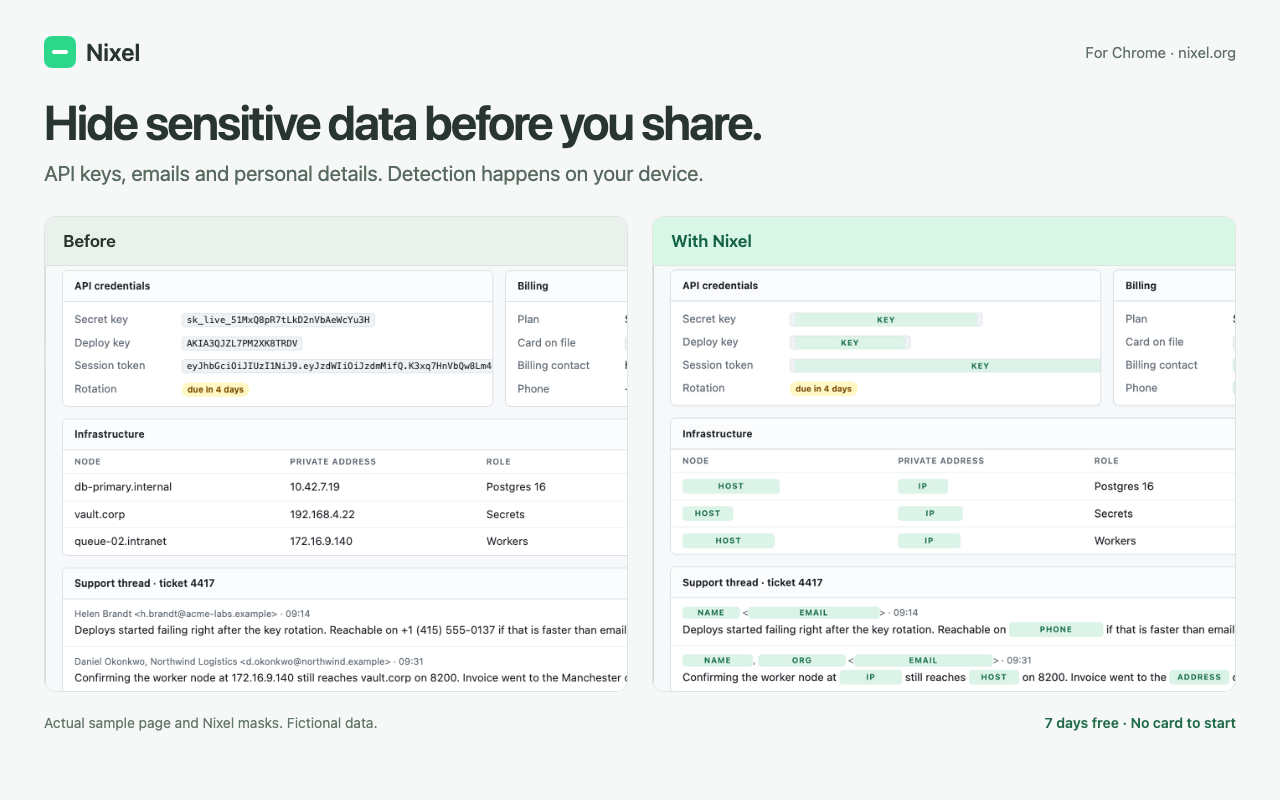
Prepare the account you plan to show
A walkthrough of an integration often ends up on its settings page. That's where a secret key, a deploy key or a session token can sit beside the feature you meant to explain.
Use a separate demo account with made-up values when the walkthrough allows it. If you only need to explain the shape of a request, use a clearly fictional placeholder instead of a working credential. Keep a real secret out of the demo whenever you can.
Write down the pages you will open. Check the settings screen, any expanded details and the places you return to between steps. A clean first screen doesn't tell you what will appear later.
Cover supported keys on the Chrome page
We make Nixel, a Chrome extension that detects supported credentials and other sensitive text locally. This is the workflow we use for browser demonstrations:
- Open the page and check Nixel. Install it from the Chrome Web Store, open your demo page and inspect the extension's findings before recording.
- Keep credential detection on. Check the API keys and token findings. Nixel recognises supported formats, including common API credentials and AWS keys. An unfamiliar token can be missed, so inspect every value you know is sensitive.
- Choose solid bars or labels. Nixel also offers blur and pixels. For a secret you need to conceal in a recording, use an opaque style and check that it covers the complete value.
- Visit each planned screen. Open the menus and details you need for the walkthrough. Wait for the page and its masks to settle before you start the take.
- Make a short test recording. Watch what the recorder actually captured. Check transitions as well as still frames, then record the full walkthrough.
You can see the extension changing mask styles in our 35-second demo. Credential pattern detection doesn't need the optional language model; that model adds detection for names, addresses and organisations.
Keep the recording inside the prepared area
Record the browser tab or window you need for the demo. Keep unrelated tabs, account menus and notifications out of the capture. If you switch to a terminal, a desktop editor or browser DevTools, check that view separately.
Nixel covers supported text on Chrome pages. It doesn't mask your whole desktop, other apps, browser controls or DevTools. Don't rely on it to detect secrets inside an image or video. Any view outside the prepared page needs its own check.
Review the finished video before uploading it
Watch the exported file from the beginning, including the moments when you change pages, open settings or stop recording. Pause where credentials could appear. If you find an exposed value, fix that section or record it again before sharing the video.
If you're sending a still image instead, follow the screenshot redaction workflow and review the exported PNG.
If a real key was already shared
Covering a value in an edited video doesn't revoke the credential. Follow the provider's response steps for an exposed key. For example, AWS recommends replacing access keys that may be compromised and deleting the previous keys.
A quick check before publishing
- The demo uses fictional values wherever practical.
- Every real credential on the prepared page is covered or removed.
- Menus, transitions and any other apps were checked separately.
- You watched the exported video, not only the recording preview.
Try Nixel on the pages you actually use. The trial lasts 7 days and needs no payment card. After that, a licence is $29 a year for 3 installs.
Try Nixel for Chrome